

Creating Audience Targeting
Step 1: Select Targeting Type
- Click Targeting in the left menu, then select the Audience tab at the top.
- Click the Create Targeting button.
- Shown as cards with the Auto badge.
- Targeting options are automatically recommended.
- Targeting name cannot be changed.
- Configure targeting options directly using custom properties and events.
- Targeting name can be set freely.
Step 2: Enter Targeting Name
(Custom targeting only) Enter the targeting name that will be displayed to advertisers.- Use 2–36 characters, not counting leading or trailing spaces.
- Only Korean, English letters, numbers, spaces, and the symbols
~%&+-are allowed. Other characters, such as Japanese, can’t be used. - The name must differ from the names of other targetings in the project, including both audience and context targeting.
Step 3: Add Targeting Options
For Auto-complete Targeting Click recommended targeting option cards to add them. For Custom Targeting- Click the + Add Option button.
- Enter the targeting option name.
- Set conditions.
- Click + Filter to add a property or event condition
- Select an operator (is, contains, >, <, etc.). The console shows operators by their English names and comparison symbols.
- Enter value
- Combine multiple conditions if needed.
- + Filter: Adds a condition to the current group. The first condition starts with where, and conditions are joined with and by default. Click and to change it to or.
- + Group: Adds a new group. Groups are joined with AND by default. Click AND between groups to change it to OR.
- Click the Create Targeting Option button.
- Targeting option names follow the same rules as targeting names and must be unique within the targeting.
- You can add up to 5,000 options per targeting. An option group counts as one option.
region and booking_count properties to create “Regional User Tier” targeting.
Example 2: Combining Properties and Events
Add event conditions for more precise targeting. For how event conditions work, see Events.
Step 4: Save
Click the Create Targeting button to save.Option Groups
You can group multiple targeting options into one to offer to advertisers.- Click the created targeting card.
- Check the targeting options you want to group.
- Click the Group options button.
- Enter the Group name and save.
- Click the Save button.
Options displayed to advertisers after grouping:
- Seoul New User, Seoul Active User, Seoul Power User
- Coastal New User, Coastal Active User, Coastal Power User
Targeting Duration
In audience targeting, you can set how long users remain in the audience after meeting targeting conditions. If a user’s property data is newly collected and checked again within the duration and the user still meets the conditions, the duration restarts from that point.- Duration is set for each audience targeting. Context targeting doesn’t have a duration.
- You can set a whole number of days from 7 to 270. The default is 270 days.
- If you change the duration, the audience is recalculated at the next hourly audience update, and users who meet the conditions at that point get the new duration from then.
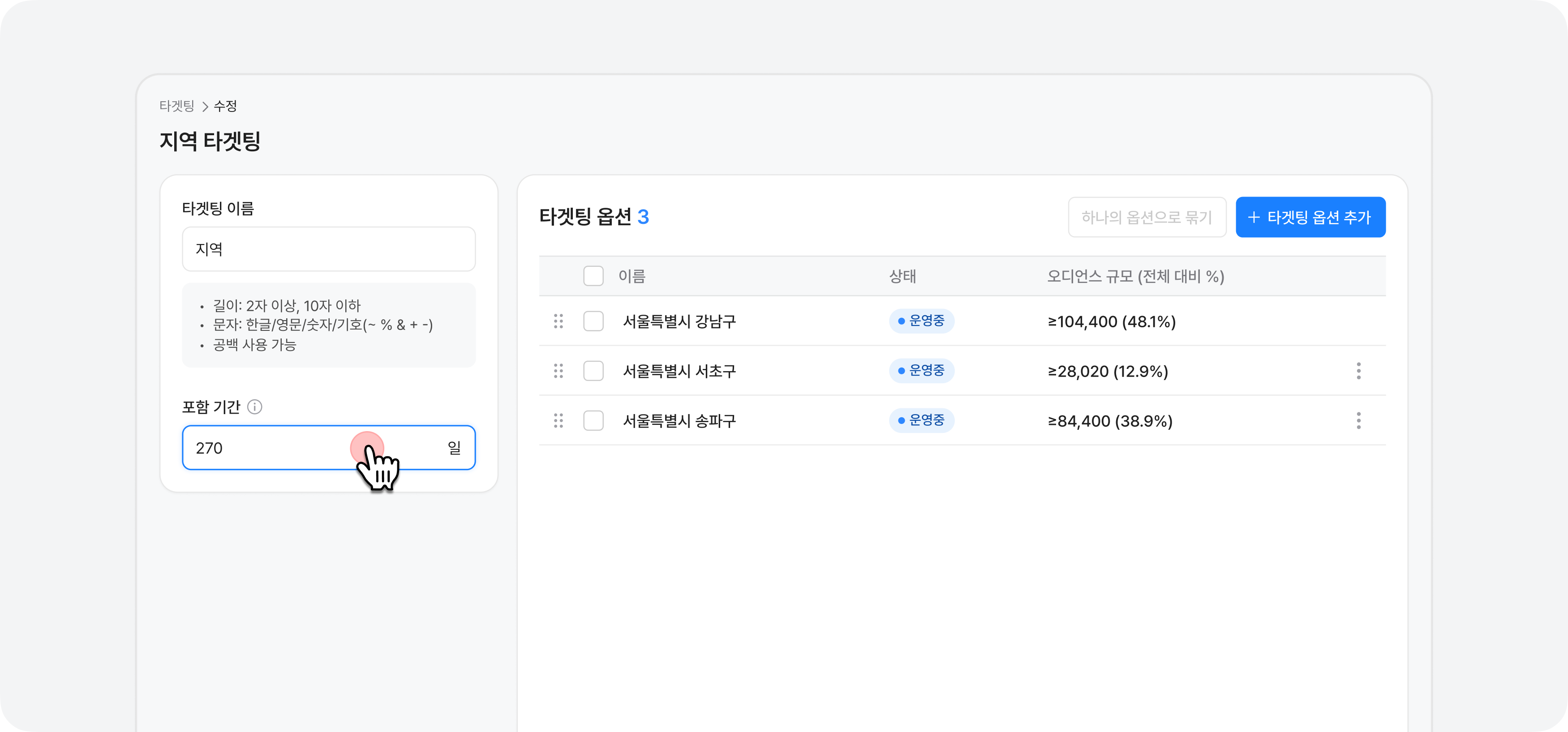
Duration Example
- Target condition: Resides in Gangnam-gu, Seoul
- Duration: 30 days
- When a user first meets the Gangnam-gu Seoul condition, they’re included in the audience for 30 days from that point.
- If the user’s properties are collected again within 30 days and still meet the condition, the duration renews for another 30 days from that point.
- If the user’s properties are collected again within 30 days but no longer meet the condition (for example, the user moved to another district), they’re excluded from the audience even if time remains.
- If the duration isn’t renewed within 30 days, they’re automatically excluded from the audience when the 30 days end.
Modifying Duration
- Click Targeting in the left menu, then select the Audience tab at the top.
- Click on an existing targeting or create new targeting and select options.
- Modify the ‘Duration’ in the left section.
- Click the Save button.
Next Steps
Creating Context Targeting
Learn how to create content-based targeting
Selling Targeting
Learn how to connect targeting to ad products
FAQ
Are there problems with too granular targeting options?
Are there problems with too granular targeting options?
More granular targeting options mean smaller audience sizes. If too small, advertisers may not select them or ad impressions may be insufficient. Find a balance between meaningful scale and precision for advertisers.
I created granular targeting options but the audience size is too small.
I created granular targeting options but the audience size is too small.
Use option groups. Even if individual options have small audiences, grouping related options into one provides meaningful scale to advertisers. For example, group “Busan New User” and “Jeju New User” to sell as “Coastal New User”.